




































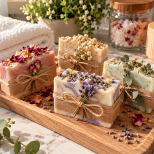





























Everything on Build a Gift is made and sold by independent shops. Here’s how to find what you love, check out and save a card for next time.
1. Find an item
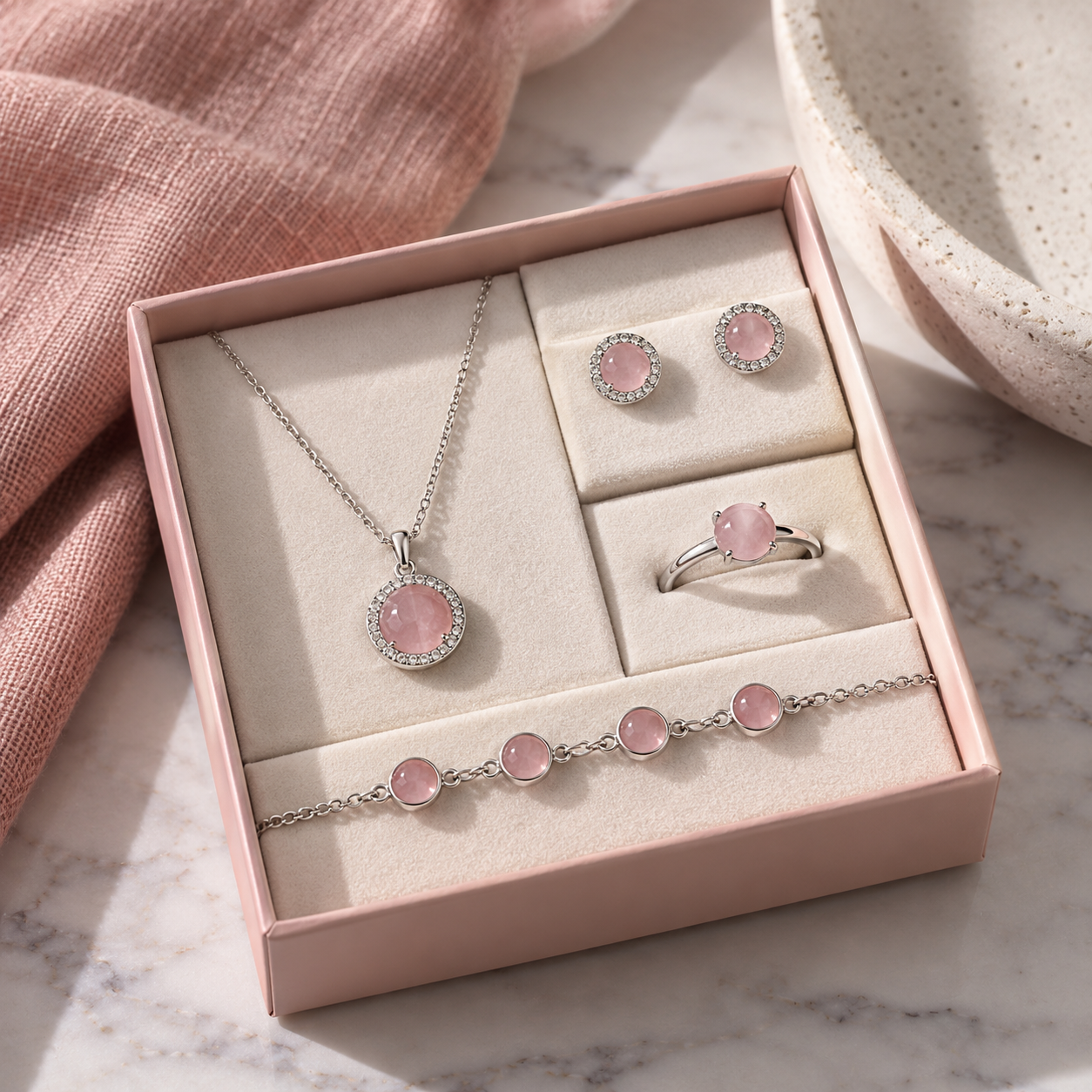
Search for something specific with the search bar at the top of every page, or browse with Categories. You can also shop ready-made gift boxes and single items.
Open a listing to see its photos, price, description, the shop that makes it, and whether it can be returned.
2. Add it to your cart
- On the listing, pick any options it offers and the quantity you want.
- Click Add to Cart. Keep shopping, or open your cart when you’re ready.
- In your cart, check the items and quantities, then click Proceed to Checkout.
Items from different shops can go in the same cart and are paid for together. Each shop ships its own items, so they may arrive in separate packages.
3. Check out
You can check out as a guest or signed in to your account. Signing in keeps your orders in one place and lets you save a card.
- Contact: enter the email address for your receipt and shipping updates.
- Shipping address: enter where the order should go. If USPS suggests a corrected version of the address, you can use it or keep what you typed.
- Shipping: some shops let you choose a shipping speed. The price updates for your ZIP code.
- Payment: pay with a credit or debit card, or another option shown, such as Link, Cash App Pay or Amazon Pay. For a card, enter the name on the card and check the billing address.
- Review your total and click Pay.
4. Save a card for next time
New cards can only be added during checkout, when you pay with them:
- Sign in before you check out.
- At Payment, enter your card details.
- Leave Save this card for faster checkout next time ticked, then click Pay.
Next time you check out, your saved cards are listed at the top of Payment. Pick one and click Pay, or choose Use a new payment method.
5. Manage your saved cards
Go to My Account → Account settings → Credit Cards. There you can:
- Edit a card’s expiration date, name on card and billing address.
- Tick Default to choose the card that’s selected first at checkout.
- Remove a card you no longer want saved (open Edit, then Remove card).
Card numbers can’t be edited. To use a different card, pay with it at checkout and save it.
6. After you buy
You’ll see your order confirmation as soon as payment goes through. Signed in? Your order is also under My Account → Purchases, and messages from the shop about it appear under Messages. When the shop ships, we email you with tracking.
Still need help? Contact us and we’ll get back to you.